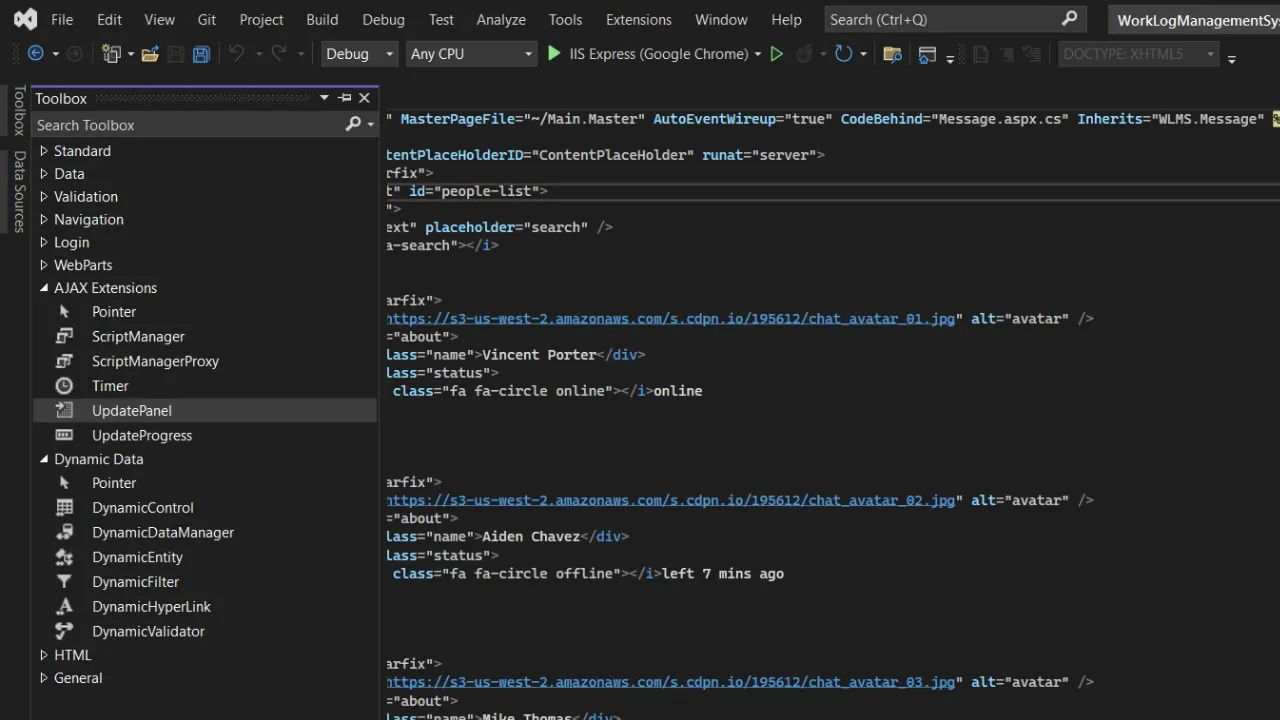
Adding and Removing UpdatePanels Dynamically in ASP.NET
September 22, 2019
·8 min
|The UpdatePanel control in ASP.NET Web Forms enables partial-page rendering through the ScriptManager's AJAX infrastructure. When a postback originates from inside an UpdatePanel, only that panel's HTML is refreshed in the browser rather than the entire page. Most of the time you place UpdatePanels directly in your .aspx markup and they stay there for the page's lifetime. But there are real scenarios where you need to generate them at runtime, such as when a user clicks "Add Section" to dynamically add repeating form groups, each needing its own independent partial update region.
How the ASP.NET Control Tree Works
Before writing any code it is important to understand how ASP.NET's control tree works. On every request, including every postback, the server rebuilds the control tree from scratch. Dynamic controls added in code-behind do not persist between requests the way static markup controls do. If you add an UpdatePanel in Page_Load on the first request and do not re-add it on the next postback, ASP.NET throws a ViewState exception because it cannot find a control in the tree to restore state into. This means the creation logic must run on every request, not just on !IsPostBack.
The ASP.NET page lifecycle fires events in a specific order: PreInit, Init, InitComplete, PreLoad, Load, LoadComplete, and so on. ViewState restoration happens between Init and Load. This timing is what makes dynamic control creation tricky. If you add a control after ViewState has already been loaded, ASP.NET has no saved state to restore into that control, and any data the user typed into it on the previous postback is lost.
Where to Create Dynamic Controls
The correct place to add dynamic controls is Page_Init, which fires before ViewState is loaded. If you do it in Page_Load instead, it must be unconditional. To track how many panels to create, store a counter in ViewState for page-level persistence or in Session if you need it to survive navigation. On each request, read the counter and create exactly that many panels.
protected void Page_Init(object sender, EventArgs e)
{
    int panelCount = ViewState["PanelCount"] != null ? (int)ViewState["PanelCount"] : 0;
    for (int i = 0; i < panelCount; i++)
        CreatePanel(i);
}

private void CreatePanel(int index)
{
    UpdatePanel panel = new UpdatePanel();
    panel.ID = "upSection" + index;
    panel.UpdateMode = UpdatePanelUpdateMode.Conditional;
    panel.ChildrenAsTriggers = true;

    TextBox txt = new TextBox();
    txt.ID = "txtField" + index;

    Button btn = new Button();
    btn.ID = "btnSave" + index;
    btn.Text = "Save";
    btn.Click += new EventHandler(BtnSave_Click);

    panel.ContentTemplateContainer.Controls.Add(txt);
    panel.ContentTemplateContainer.Controls.Add(btn);

    phSections.Controls.Add(panel); // phSections is a PlaceHolder in markup
}
Always assign a deterministic, consistent ID to each dynamically created control based on a stable index or identifier. ASP.NET uses the control ID to match incoming ViewState to the right control in the tree. If the ID changes between requests, ASP.NET discards the ViewState for that control, which means any data the user entered inside the panel disappears after an async postback.Adding and Removing Panels at Runtime
To add a new panel when the user clicks "Add Section", increment the counter in ViewState and trigger a postback. The next time Page_Init runs it reads the higher count and creates the additional panel.
protected void BtnAdd_Click(object sender, EventArgs e)
{
    int count = ViewState["PanelCount"] != null ? (int)ViewState["PanelCount"] : 0;
    ViewState["PanelCount"] = count + 1;
    CreatePanel(count); // create the new panel immediately for this request
}

protected void BtnRemove_Click(object sender, EventArgs e)
{
    int count = ViewState["PanelCount"] != null ? (int)ViewState["PanelCount"] : 0;
    if (count > 0)
        ViewState["PanelCount"] = count - 1;
    // On next Page_Init, one fewer panel gets created
}
Notice that when removing a panel, you do not need to explicitly remove it from the control tree during the current request. You just decrement the counter. On the next postback, Page_Init creates one fewer panel and the removed one simply does not exist in the tree anymore. ASP.NET ignores the orphaned ViewState for it.
The Markup Side
Your .aspx page needs a ScriptManager and a PlaceHolder where the dynamic panels will be injected. The PlaceHolder acts as the container for all dynamically created controls.
<asp:ScriptManager ID="sm" runat="server" />

<asp:PlaceHolder ID="phSections" runat="server" />

<asp:Button ID="btnAdd" runat="server" Text="Add Section" OnClick="BtnAdd_Click" />
<asp:Button ID="btnRemove" runat="server" Text="Remove Last" OnClick="BtnRemove_Click" />
The Add and Remove buttons sit outside any UpdatePanel, so they cause a full postback by default. This is fine because the entire page needs to re-render with the new panel count. If you want these buttons to also do partial updates, wrap them in their own static UpdatePanel.
Registering External Triggers
If a trigger control lives outside the UpdatePanel, such as a shared "Refresh All" button in the page header, register it with the ScriptManager so it triggers an async postback instead of a full one. Then add a corresponding trigger to each panel.
// Register an external button as an async trigger
ScriptManager.GetCurrent(Page).RegisterAsyncPostBackControl(btnRefreshAll);

// Add a trigger to the panel pointing at the external button
AsyncPostBackTrigger trigger = new AsyncPostBackTrigger();
trigger.ControlID = btnRefreshAll.ID;
trigger.EventName = "Click";
panel.Triggers.Add(trigger);
This is useful when you have a toolbar button that should refresh all panels at once, or a timer control that periodically updates specific sections of the page.
Using Conditional Update Mode
When you have multiple UpdatePanels on the same page, set UpdateMode = UpdatePanelUpdateMode.Conditional on every panel. Without this, each panel defaults to Always, which means any async postback anywhere on the page causes all panels to refresh. With Conditional mode, a panel only refreshes when one of its own triggers fires or when panel.Update() is called explicitly from code-behind. This gives you precise control over which region updates in response to which user action, and avoids unnecessary round trips to the server for panels whose data has not changed.
Common Mistakes to Avoid
The first mistake most developers make is creating dynamic controls inside an if (!IsPostBack) block. This works on the initial page load, but on postback the controls do not exist, ViewState cannot be restored, and the page either throws an error or silently loses user input.
The second common mistake is using random or timestamp-based IDs for controls. If a TextBox has ID = "txt_" + DateTime.Now.Ticks, the ID changes on every request and ViewState can never match up. Use the loop index or a stable database key instead.
Third, watch out for event handler wiring. If you create a Button inside a dynamic UpdatePanel but forget to attach its Click event handler during Page_Init, the button renders fine but clicking it does nothing. ASP.NET needs the handler wired up before the event-processing phase of the lifecycle.
Finally, be careful with nested UpdatePanels. While ASP.NET allows it, having a dynamic UpdatePanel inside another UpdatePanel creates complex refresh behaviour. The inner panel's async postback will also trigger the outer panel's refresh unless both are set to Conditional mode. Keep the nesting flat when possible.
When to Use This Pattern
Dynamic UpdatePanels work well for forms where users add repeating sections, such as invoice line items, survey questions, or multi-step wizards where the number of steps is not known ahead of time. They also work for dashboards where widgets can be added or rearranged by the user.
That said, if you find yourself creating dozens of dynamic panels on a single page, it might be worth reconsidering the approach. Each UpdatePanel adds overhead to the page because the ScriptManager must track all of them for async postback handling. For very complex dynamic UIs, a client-side approach using JavaScript to manipulate the DOM directly, combined with Web API calls for data, can be more efficient than relying on the UpdatePanel infrastructure.