ASP.NET Website vs. ASP.NET Web Application Project
March 09, 2017
·8 min
|When you create a new project in Visual Studio targeting ASP.NET, you are presented with two options that look similar on the surface: ASP.NET Web Site and ASP.NET Web Application. Both run on IIS and produce web pages, but they differ fundamentally in how code is compiled, how files are managed, and how the project is deployed. The confusion is understandable because Visual Studio uses similar templates for both.
How Web Sites Work
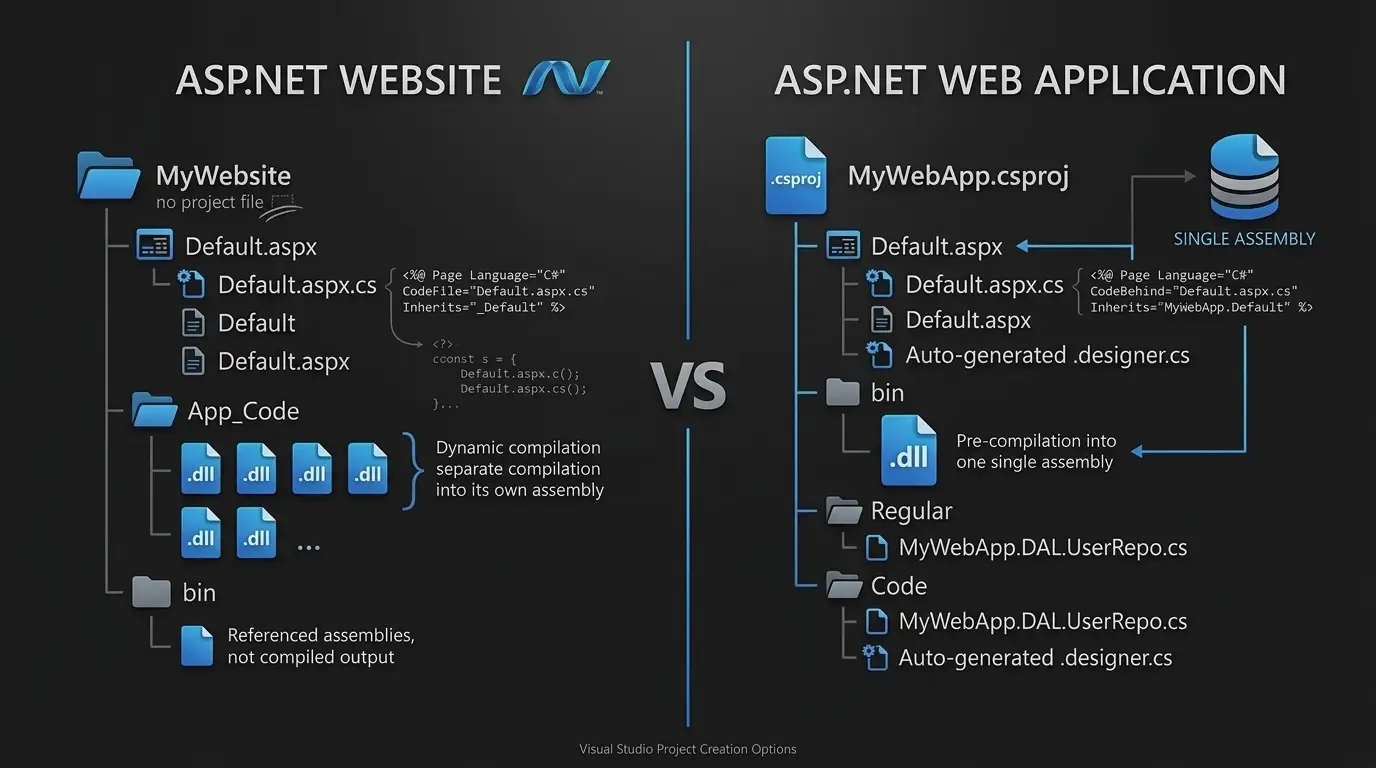
A Web Site has no project file. The folder itself is the project. There is no .csproj or .vbproj binding you to Visual Studio. ASP.NET compiles .aspx, .ascx, and .master files dynamically at runtime when they are first requested. Code-behind files are referenced using the CodeFile attribute in the @Page directive. Shared code goes into the special App_Code folder, which ASP.NET compiles separately into its own assembly and makes available to every page automatically.
<%@ Page Language="C#" CodeFile="Default.aspx.cs" Inherits="_Default" %>Because there is no project file, Visual Studio just opens the folder. Every file in the folder is part of the project. You cannot exclude a file from compilation without physically moving or renaming it. This is simple for small projects, but gets messy on larger codebases where you might have test files, documentation, or experimental code sitting alongside production pages.
The runtime compilation model means you can edit a .aspx.cs file directly on the server and the change takes effect on the next request. There is no build step needed. ASP.NET detects the file change and recompiles it on the fly. This was considered a feature back when FTP deployments were common, but it also means anyone with server access can introduce bugs without going through a proper review or build process.
How Web Applications Work
A Web Application Project has a .csproj file that explicitly lists every file in the project. When you build it, Visual Studio compiles all code files into a single assembly placed in the bin directory. Code-behind files use CodeBehind instead of CodeFile, and each page gets an auto-generated .designer.cs partial class file containing all control declarations. Shared code can live in any folder, just like a regular class library.
<%@ Page Language="C#" CodeBehind="Default.aspx.cs" Inherits="MyWebApp.Default" %>The .designer.cs file is what Visual Studio uses to keep track of server controls declared in the markup. When you drag a Button onto the design surface or type it into the .aspx file, Visual Studio adds a corresponding field declaration in the designer file. This gives you IntelliSense and compile-time checking for all your controls.
Compilation Differences
This is the most important difference between the two. A Web Site compiles each page into its own temporary assembly at runtime. If you have 50 pages, you can end up with 50 separate assemblies in the temporary ASP.NET files folder. This means a syntax error in one page does not prevent other pages from working.
A Web Application compiles everything into a single assembly at build time. If any file has a compilation error, the entire build fails. This sounds stricter, and it is, but that is actually what you want. You find errors at build time, not at runtime when a user happens to visit the broken page.
Namespace Handling
Namespace handling is different between the two. In a Web Site, classes in the root and regular folders have no namespace by default. Only classes inside App_Code get an auto-generated namespace. In a Web Application, the namespace follows the project root namespace combined with the folder hierarchy. A class at MyApp/DAL/UserRepo.cs would have namespace MyApp.DAL. This matters on larger projects where namespace consistency across files is important.
In a Web Site, it is common to see multiple pages with a class named _Default and no namespace. This works because each page compiles separately. In a Web Application, those would immediately conflict and you would need to give each page a unique fully qualified class name.
Deployment
Deployment works differently too. Publishing a Web Site can deploy source files directly to the server, which are then compiled on first request. That is convenient for quick hotfixes but risky in production because partial deployments are possible. A Web Application always produces compiled output: the bin assembly plus the .aspx markup files. You can merge assemblies further using the Publish wizard if you want a single .dll.
A key practical difference: with a Web Site you can copy a new .aspx.cs file to a live server and the runtime recompiles it on the next request. With a Web Application you must rebuild and redeploy the entire assembly. For production systems under source control and CI/CD, the Web Application model is the safer approach because you cannot accidentally deploy half a change.Source Control and CI/CD
Web Applications work better with source control because the .csproj file acts as a manifest of what is in the project. When two developers add different files, the merge conflict shows up in the project file and is easy to resolve. With a Web Site, there is no manifest, so the only way to know what files belong to the project is to look at the folder.
For CI/CD pipelines, Web Applications are straightforward. MSBuild knows how to build a .csproj file, and the output is a well-defined set of assemblies and content files. With a Web Site, you need to use the aspnet_compiler command or configure the build server to understand the folder-based project model. Most modern CI tools expect a project file.
File Exclusion
File exclusion also behaves differently. In a Web Application, right-clicking a file and choosing Exclude from Project simply removes it from the .csproj manifest without touching the file itself. In a Web Site, Visual Studio renames the excluded file by appending .exclude to its extension, which pollutes the directory and can cause issues in source control if you are not paying attention.
Unit Testing
Testing code-behind logic in a Web Site is awkward because the classes are compiled at runtime and do not exist as a referenceable assembly during development. You cannot add a test project and reference the Web Site project the way you would with a class library. There are workarounds involving the aspnet_compiler tool, but they add friction.
With a Web Application, the compiled assembly is available in the bin folder just like any other project. A test project can reference it directly and instantiate page classes, call methods, and assert results. This makes writing unit tests for business logic in code-behind classes much more practical.
Which One to Use
For any project that goes through a proper build and release pipeline, the Web Application Project model is the right choice. It supports strong-named assemblies, integrates cleanly with MSBuild and CI tools, and makes unit testing code-behind logic straightforward since all classes are compiled into a single verifiable assembly.
The Web Site model still works for quick prototypes or small internal tools where you want the flexibility of editing code directly on the server without a build step. But for anything that has multiple developers, source control, or a deployment pipeline, the Web Application model saves you from a whole category of problems that the Web Site model introduces.
If you have an existing Web Site that has grown beyond its original scope, consider converting it to a Web Application. The process takes some effort but the payoff is better tooling support, cleaner code organisation, and a deployment model that fits modern development practices.