Conversion of Website to a Web Application in ASP.NET
September 07, 2018
·8 min
|Why Convert
There are good reasons to move an existing ASP.NET Web Site to a Web Application Project. You get proper compile-time error checking, cleaner namespace structure, easier unit testing, and a single compiled assembly that fits neatly into CI/CD pipelines. The conversion is not instant, but it is well-defined once you understand what Visual Studio does at each step.
I have done this migration on a few legacy projects at work, and the first time it took me the better part of a day to figure out all the gotchas. The second time it took about an hour. This post covers everything I learned so you can skip the trial and error.
Step 1: Back Up Everything
Before anything else, make a full backup of the existing website folder outside the solution directory. The conversion modifies file contents and renames folders in place. Also note the target .NET Framework version of the website so you can match it in the new project. You can find this in the Web.config under the compilation section, or in the website property pages in Visual Studio.
If the project is in source control, commit everything first so you have a clean rollback point. The conversion touches a lot of files and you want to be able to compare changes easily.
Step 2: Create the New Web Application Project
Open the solution in Visual Studio. Add a new project via File, Add, New Project, then select ASP.NET Web Application (.NET Framework). Match the .NET Framework version and give the project a sensible name. Choose the Empty template since you are going to copy in all the existing files.
Once created, copy every file and subfolder from the original website into the new project folder, including App_Code. In Solution Explorer, right-click the project and use Add Existing Item (or Show All Files then Include In Project) to pull them all in. Do not drag and drop from one project to another inside Visual Studio as that can lose file associations.
Step 3: References and Configuration
Check the bin folder of the original website for any third-party DLLs and add those as references to the new project. If the original project used NuGet packages, install them fresh in the new project through the Package Manager Console. Do not just copy the packages folder, because the .csproj file needs the proper NuGet references.
Review Web.config from the original and carry over connection strings, custom configuration sections, httpHandlers, and httpModules entries. These are easy to miss and cause runtime errors later if left out. Pay special attention to any custom configSections registered at the top of the file.
Step 4: Run the Conversion
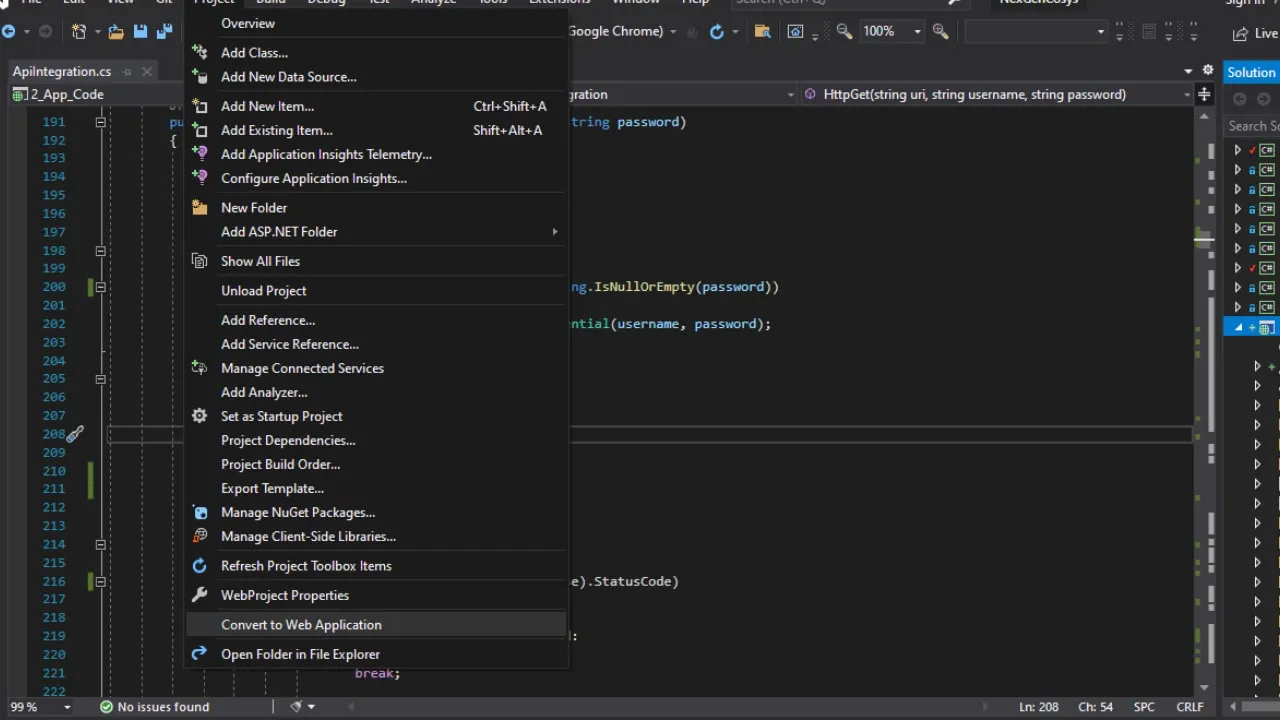
With files in place and references added, right-click the project root in Solution Explorer and choose Convert to Web Application. Visual Studio will rename App_Code to Old_App_Code, generate .designer.cs partial class files for every .aspx, .ascx, and .master file, and change CodeFile to CodeBehind in all page directives.
The most visible change the conversion makes is to code-behind attributes. In a Web Site, each page usesCodeFile="Default.aspx.cs"in its@Pagedirective. In a Web Application this becomesCodeBehind="Default.aspx.cs". Visual Studio also generates aDefault.aspx.designer.cspartial class for each page containing all control field declarations. If your original code-behind already declared those controls manually, you will get duplicate member errors that need to be resolved one by one.
Step 5: Fix Build Errors
Build the project. You will almost certainly see errors. The most common is duplicate class definitions. In a Web Site, having multiple pages with a class named _Default without a namespace is fine because each page compiles separately. In a Web Application, they all compile into one assembly and conflict. Fix this by adding unique namespaces to each code-behind class and updating the Inherits attribute in the corresponding .aspx file to use the fully qualified name.
// Code-behind class after adding namespace
namespace MyWebApp.Pages
{
    public partial class Default : System.Web.UI.Page
    {
        protected void Page_Load(object sender, EventArgs e) { }
    }
}
<!-- Matching @Page directive -->
<%@ Page CodeBehind="Default.aspx.cs" Inherits="MyWebApp.Pages.Default" %>Another common error is missing using statements. In a Web Site, App_Code classes are automatically available everywhere. In a Web Application, you need explicit using directives to reference classes from other namespaces. The compiler error messages will tell you exactly which classes cannot be found.
Step 6: Handle App_Code
Visual Studio renames App_Code to Old_App_Code during the conversion because the App_Code folder has special behaviour in Web Sites that does not apply to Web Applications. In a Web Application, any folder can hold code files since they all compile into the same assembly.
You can either keep the Old_App_Code name or rename it to something more meaningful like Models, Helpers, or DAL depending on what the classes do. Just make sure you update the namespaces to match the new folder structure.
Step 7: Fix Framework Mismatches
If the solution includes class library projects, check their target framework version. Mismatched framework versions cause reference errors at build time. Right-click each referenced project, open Properties, go to the Application tab, and align the Target Framework to match the Web Application.
Also check the system.web/compilation section in Web.config. The targetFramework attribute there must match the project's target framework. A mismatch here causes subtle runtime errors that are hard to track down.
Step 8: Configure and Run
Set the project URL in the Web Application properties under the Web tab. Set it to something like https://localhost:44317/MyWebApp and click Create Virtual Directory. Set the Web Application as the startup project and pick the default start page.
Do a full rebuild. If there are no errors, run the project. Click through the main pages to verify everything works. Pay attention to pages that use dynamic controls, user controls, or custom HTTP handlers since those are the areas most likely to break after conversion.
Common Pitfalls
The .designer.cs files can sometimes get out of sync with the markup. If a control declared in the .aspx file is not showing up in the designer file, right-click the .aspx file and choose Convert to Web Application again. This regenerates the designer file for that specific page.
Watch out for Profile properties. Web Sites have built-in support for strongly-typed Profile properties defined in Web.config. Web Applications do not generate a Profile proxy class automatically. You will need to create a custom Profile class or use HttpContext.Current.Profile with string-based property access instead.
If the original website used inline code blocks (<% %> and <%= %>) in .aspx files, those will continue to work in a Web Application. But if any inline code referenced classes from App_Code without a namespace, those references will break after the conversion. Add the proper using directive at the top of the page or use fully qualified class names.
After verifying everything works, remove the original Web Site project from the solution and keep only the new Web Application. The application should behave exactly as before, now with a single compiled assembly and proper project file structure that integrates cleanly with build servers and deployment pipelines.